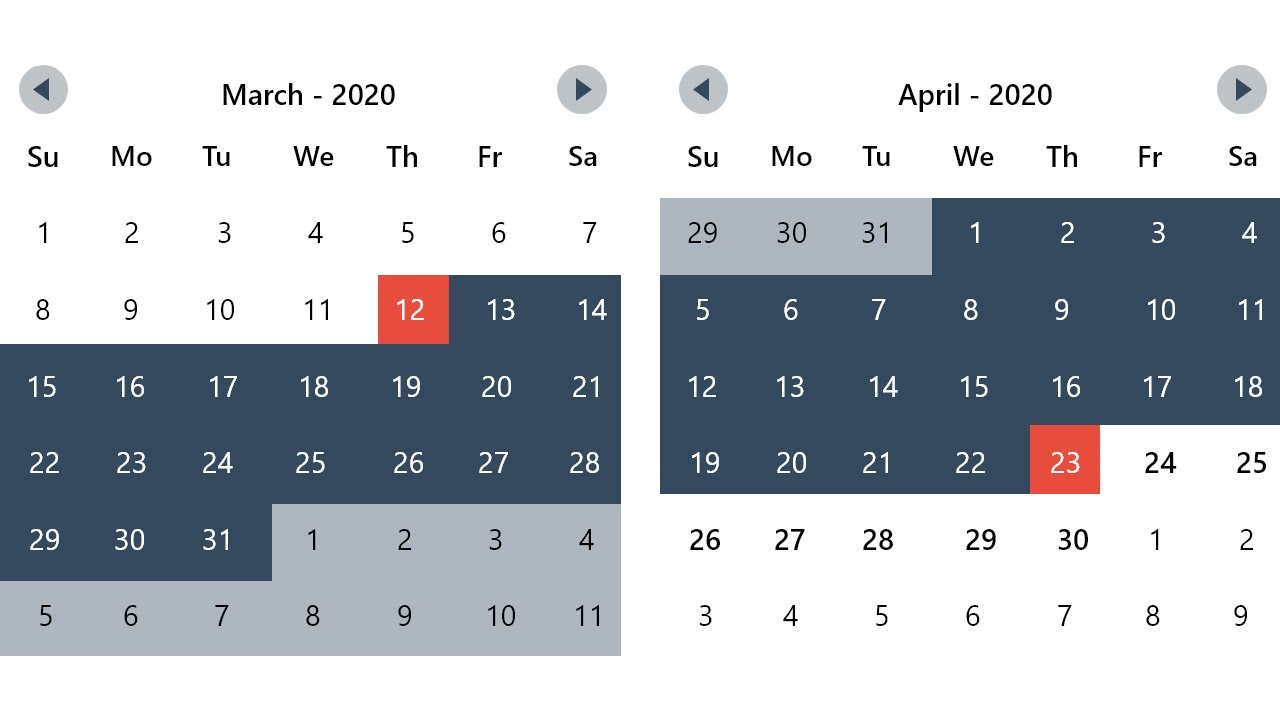
I’m working with Power BI and have a connection to my data source. I’m using the MAQ Calendar Visual to show events on a monthly calendar layout. The visual works great when I use one date column, but I’m struggling to figure out how to display multiple date columns from the same record simultaneously.
My data structure looks like this:
Person
StartDate
EndDate
Notes
John
15/03/24
22/03/24
xyz
Sarah
10/04/24
18/04/24
abc
Mike
05/05/24
12/05/24
def
Currently, I can only show either the StartDate or EndDate for each person on the calendar. What I want to achieve is having both dates visible for the same person. Is it possible to configure this visual to pull from multiple date columns and show them as separate data points for each record? I’ve looked through the visual settings but can’t find an option to add a second date field.
I’ve hit this same wall before. Skip the unpivot - there’s a better way. Duplicate your dataset in Power Query and make two separate queries, one for StartDate and one for EndDate, then smash them together. Hit Transform Data and duplicate your main table twice. First copy: ditch the EndDate column, rename StartDate to ‘Date’, add a column with ‘Start’ as the value. Second copy: drop StartDate, rename EndDate to ‘Date’, add ‘End’ as the type. Append both queries and feed that combined table into your MAQ visual. You get way more control over formatting and extra columns compared to DAX UNION. Plus it’s easier to debug when stuff breaks. Downside? You’re doubling your data, but calendar displays handle it fine unless you’re working with crazy huge datasets.
I’ve had good luck creating date ranges directly in Power Query before it reaches the visual. Had the same issue with employee vacation tracking - the MAQ visual runs way better when you generate all the dates upfront instead of using calculated tables. In Power Query, expand each record to create rows for every date between StartDate and EndDate. Add a custom column with List.Dates([StartDate], Duration.Days([EndDate]-[StartDate])+1, #duration(1,0,0,0)) then expand that list column. You’ll get one row per date per person, and MAQ Calendar handles it perfectly. This beats the DAX UNION method because Power Query does the work during refresh instead of at query time - much better performance with large datasets. Filtering’s way more responsive when users mess with slicers too. Only downside is refresh takes a bit longer, but it’s worth it for the better user experience.