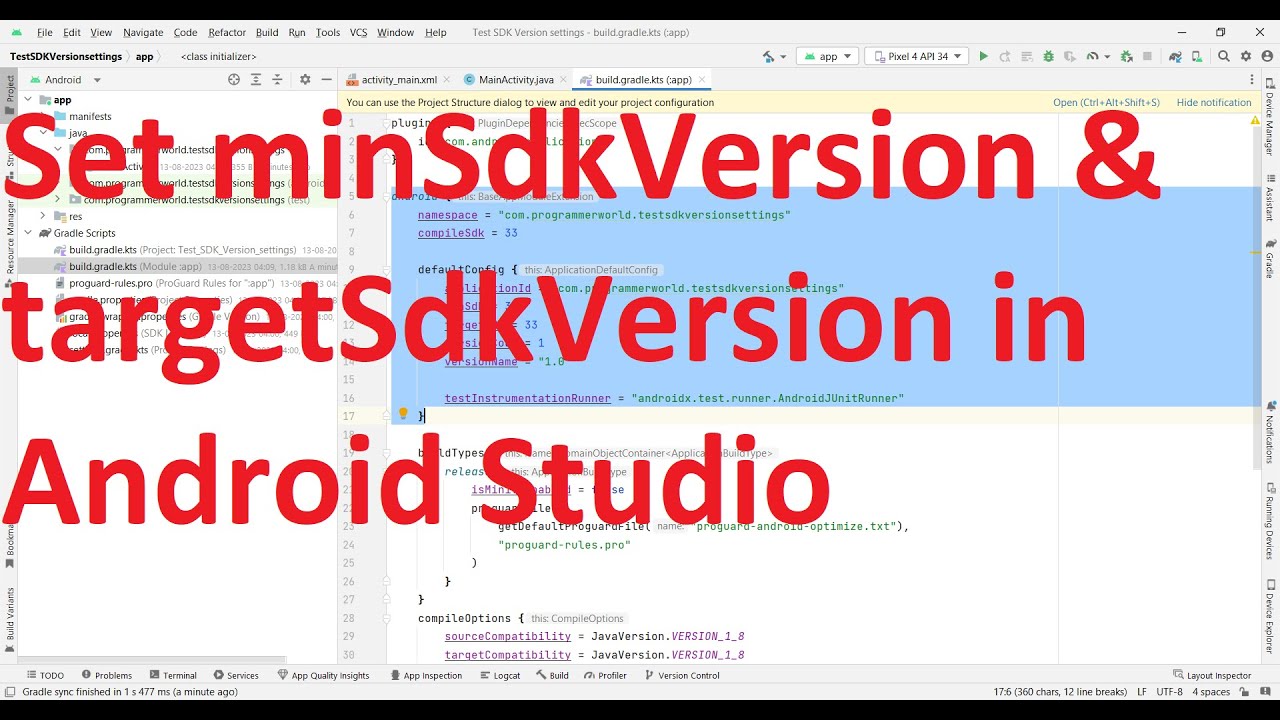
However, after making this change and syncing the project, I’m still encountering some compilation errors in the IDE. It seems like Android Studio isn’t fully recognizing the updated SDK requirements. I think there might be additional configuration settings I need to adjust for the IDE to properly acknowledge this change. Where exactly should I look to ensure the minimum SDK version is correctly set throughout the entire project?
Check your product flavors if you’ve got any set up. Each flavor can override minSdk settings and mess up compilation even when your main defaultConfig looks right. Hit this issue updating a white-label app where different flavors had SDK requirements scattered everywhere in the gradle file. If you’re using native code, check CMakeLists.txt too - NDK caches API level info separately from gradle. Delete the .externalNativeBuild folder in your module directory and let it rebuild. One more gotcha: custom lint rules in third-party plugins. Some ship with hardcoded API level checks that completely ignore your gradle settings. Update your plugins - something might be stuck enforcing the old API requirements.
Your build.gradle looks fine, but old SDK references are probably lurking somewhere else.
Check your library modules first - each one has its own build.gradle and they all need matching minSdk values.
Look for hardcoded API checks in your code like if (Build.VERSION.SDK_INT >= 16). Those need updating too.
Check your manifest for leftover uses-sdk tags. Android Studio handles this from gradle, but old entries can conflict.
Lint warnings catch people off guard. Even after bumping minSdk, lint complains about methods added after API 16. You’ll need @SuppressLint annotations or updated lint config.
Do a clean rebuild once all modules match. File → Invalidate Caches and Restart helps when Studio gets confused about SDK changes.
What compilation errors are you seeing exactly? That’d help pinpoint the issue.
Had this exact same issue migrating from API 16 to 21 last year. The problem was my vector drawables - they were still using compatibility attributes even though I’d updated minSdk. Android Studio kept throwing compatibility warnings that blocked compilation. Beyond the obvious gradle sync, check your drawable resources. Vector drawables using app:srcCompat instead of android:src will cause problems. Also check themes.xml - sometimes theme references still point to AppCompat versions you don’t need anymore. Another thing that’ll bite you: dependency versions in project-level build.gradle. Some support libraries have minimum requirements that clash with your new minSdk. Update appcompat and material design libraries to versions that work with API 21. The compilation errors you’re seeing would help narrow it down, but resource and dependency mismatches trip up most people during SDK updates.
Your IDE cache is probably holding onto old references after the gradle sync. Hit this same issue moving from API 19 to 26 on a client project.
Check for any @TargetApi annotations in your code first. These override gradle settings and will mess with the compiler if they’re still pointing to the old SDK.
Also check your lint.xml file. Sometimes there are suppress rules or severity overrides referencing the old API level.
The android:icon attribute in manifests trips people up too. Vector drawables as app icons need different handling between API levels and Studio gets finicky about it.
Run ./gradlew clean from terminal instead of IDE clean. Command line clean sometimes catches stuff the IDE misses.
This video walks through everything step by step:
If that doesn’t work, check your gradle.properties file. Sometimes there are global SDK references that override module settings.
try deleting the .gradle folder in your project root. studio sometimes caches old sdk info there and sync doesn’t clear it out. delete that folder and rebuild - worked for me when i went from api 19 to 23.
The gradle file looks right, but managing manual checks across modules and dependencies is a real pain.
I dealt with this nightmare on an 8-module project. Constantly missed library build files and dependency conflicts. Wasted hours tracking down hardcoded API checks and lint configs.
Now I just automate the whole SDK update process. Built a workflow that scans all modules, updates minSdk values, finds outdated API references, and handles ProGuard rules automatically.
It catches everything mentioned in other answers - multi-module gradle files, dependency conflicts, manifest tags, lint configs. Does it all at once instead of hunting manually.
No more cache invalidation or wondering what you missed. Run the automation and your entire project updates consistently.
Saved me 3-4 hours per SDK bump across team projects.
Make sure you update gradle files in ALL modules if you’ve got a multi-module project - each one can have different minSdk values. Also check your ProGuard config. Old rules pointing to older API levels will break compilation even after you fix build.gradle. Check your dependencies too since some libraries might still target lower API levels. Run ./gradlew app:dependencies to spot any conflicts. Delete your build folder and do a clean rebuild to clear the cache.